Sunday, February 5, 2017

NodeMCU and OSX

During my adventure with NodeMCU, ESP9266 and DHT22 I had to switch from Windows machine to Macbook. Looks like having it running from OSX is as easy as at windows.

Step 1: Download and install CP210x USB to UART Bridge VCP Drivers
Step 2: Connect your NodeMCU and verify if you have USB serial port available


Step 3: Connect to this virtual COM using your favorite terminal emu. Remember to adjust settings (Default: 9600/8/N/1). Screen is the one you probably already have. If you didn't change default configuration then you are ready to go. Just type `screen /dev/tty.SLAB_USBtoUART`


Works like a charm.

Flashing firmware is also easy. You have to have python and pip installed. Python is already there. All you have to do is `sudo easy_install pip`. 
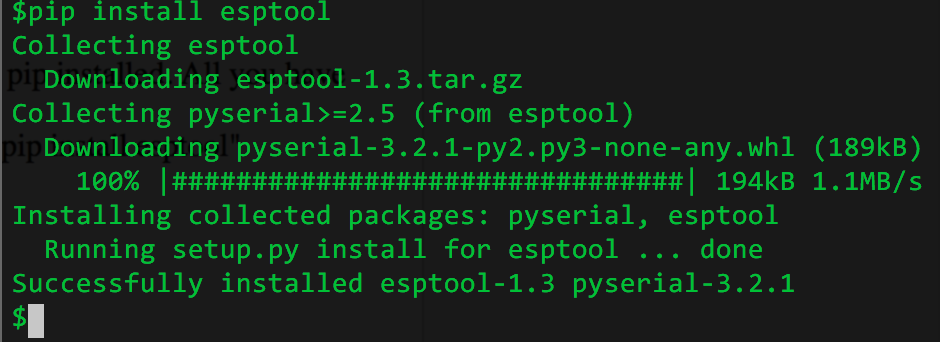
After pip is installed you can use it to install esp tool by using command `pip install esptool`:


Now we can try to install some software. Little bit more complicated, but can survive. In order to enable flashing of device, GPIO0 must be set to low. It can be done by pressing "FLASH" button during powering on (just keep it pressed as you plug it into USB port). Also remember to disconnect your terminal from serial port. I was able to reflash my NodeMCU using this method easily.


After that just replug your device, open back terminal emulator and reconnect to serial interface. You are back in the business. What is also quite interesting, after flashing on Windows I had to upload init.lua again, this time it was not removed.

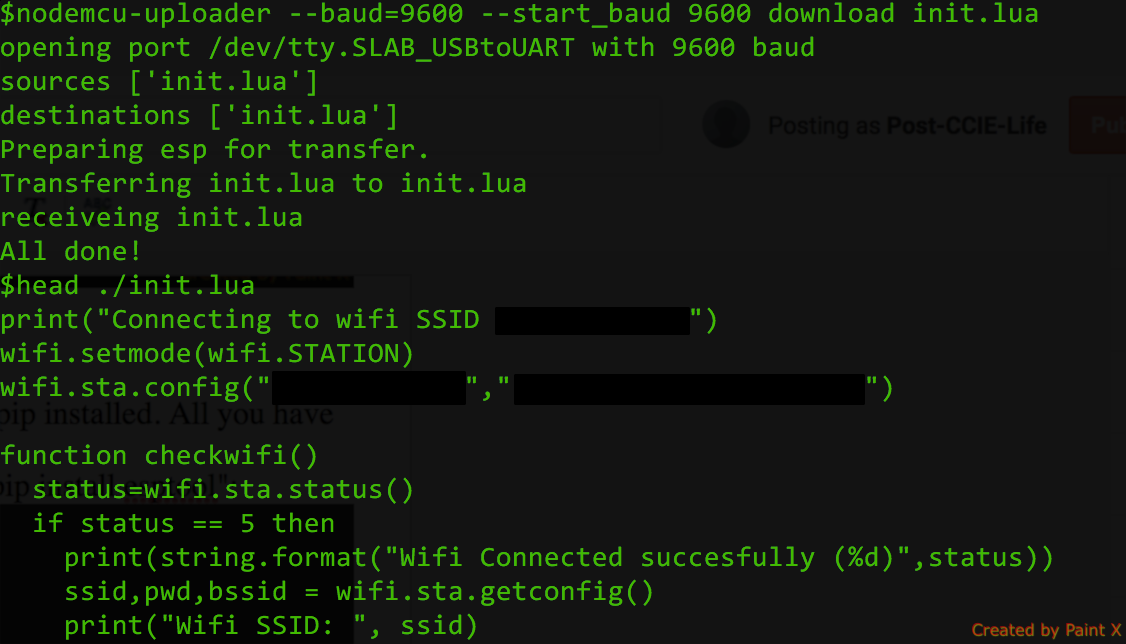
So yea, one last thing to learn would be how to up(down)load files. Need another cool tool to be installed - nodemcu-uploader. Procedure exactly the same as before. Note, disconnect your terminal and according to instructions, as we use old firmware, change baudrate to 9600.


Now we can fully work with NodeMCU from OSX directly.
You can continue with this guide. Only difference is - you will have to enter all commands manually.


Getting more of LUA and NodeMCU

In my first and second article about making home smart, we managed to build the sensor, connect it, install firmware and do some basic things like lighting LED or reading temperature and humidity data from sensor. Now it's time to do some serious coding. This is the place where I spent most of my time with NodeMCU so far. Not because it's so complex - LUA is quite friendly and simple. If you did some coding with Perl or Python, this would be very easy for you.


Let's start properly - there's LUA book available on-line, called Programming in Lua. First edition is available on-line and even though you are probably already familiar with scripting, it's good to review it on a fast forward just to know what's going on.

Second very importand resource is this page. It tells you everything that you have to know in order to be succesfull with various devices you might want to connect to your unit.

Okay, let's get started. We already have some experience and we know how to light up the diode and how to read the sensor data. Now it's time to write down code, which will run during module bootup, start WiFi, connect to the network and read our sensor periodically. Let's keep things simple for the time being and just display the data. Sending it somewhere will be our next step.

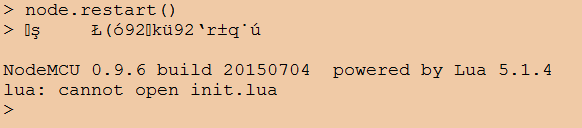
As you might have noticed, after MCU starts, it displays message "cannot open init.lua".


This is the file that firmware use to start whatever script we want to execute. 
Let's try with some basic code (most of it we already got from Lua Loader by just clicking! :))

print("Connecting to wifi SSID wifi-name")
wifi.setmode(wifi.STATION)
wifi.sta.config("wifi-name","wifi-password")

status=wifi.sta.status()
if status == 5 then
print(string.format("Wifi Connected succesfully (%d)",status))
sid,pwd,bssid = wifi.sta.getconfig()
print("Wifi SSID: ", ssid)
print("Wifi IP: ",wifi.sta.getip())
print("Assuming normal operations.")
else
print(string.format("Wifi Not Connected (%d).",status))
end

pin=2
gpio.mode(4,gpio.OUTPUT)
gpio.write(4,0)
status, temp, humi, temp_dec, humi_dec = dht.read(pin)
gpio.write(4,1)

if status == dht.OK then
print(string.format("DHT Temperature: %.1f;Humidity: %.1f%%\r\n",temp,humi ))
else
print("Fatal: Invalid Read from DHT")
end

Okay, cool. We have something that works. By the way, I light up blue LED while data is read from the sensor. This act as a gadget as well as visual keep-alive. In the future when it will be installed it will be very easy to verify if it works by looking at it.

Normally our approach would be to have it in the loop with some delay in order to have it done periodically. At least sensor part. What if connection to wifi takes longer than execution of code? We also have to include some delay here and retry in case of failure.

With my little experience with this platform, seems that introducing delay may be quite difficult and this is supposed to be event driven. So I found two useful ways to do this

Just like with LuaLoader, I went for timers just because I found them first.

So here's the idea:
- turn WiFi verification and sensor read into functions
- start WiFi Association
- start reoccuring timer for 1 second, every time it fires verification of WiFi happens
- if negative, do nothing, just keep it running every second
- if positive, remove timer and start another timer which will trigger sensor function periodically.

-- 1. Initiate connection to WiFi:
print("Connecting to wifi SSID wifi-name")
wifi.setmode(wifi.STATION)
wifi.sta.config("wifi-name","wifi-password")

-- 2. Turn wifi verification to a function
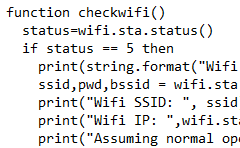
function checkwifi()
  status=wifi.sta.status()
  if status == 5 then
    print(string.format("Wifi Connected succesfully (%d)",status))
    ssid,pwd,bssid = wifi.sta.getconfig()
    print("Wifi SSID: ", ssid)
    print("Wifi IP: ",wifi.sta.getip())
    print("Assuming normal operations.")
-- 6. If we detect that Wifi Connection is successful
-- terminlate timer ID 0 and start new timer ID 1
-- which will run every 15 seconds and trigger getdht()
    tmr.unregister(0)
    tmr.alarm(1,15000,1,function() getdht() end)
  else
    print(string.format("Wifi Not Connected (%d). Retrying in 1 second...",status))
  end
end

-- 3. Turn sensor read into function
function getdht()
  pin=2
  gpio.mode(4,gpio.OUTPUT)
  gpio.write(4,0)
  status, temp, humi, temp_dec, humi_dec = dht.read(pin)
  gpio.write(4,1)

  if status == dht.OK then
    print(string.format("DHT Temperature: %.1f;Humidity: %.1f%%\r\n",temp,humi ))
  else
    print("Fatal: Invalid Read from DHT")
  end
end

-- 4. After everything is set up print a message:
print("Waiting 1 second for WiFi init...")
-- 5. Start 1-second (1000) reoccuring (tmr.ALARM_AUTO) timer
-- with ID 0 (0).
-- Once triggered it will run checkwifi() and start over.
tmr.alarm(0,1000,tmr.ALARM_AUTO,function() checkwifi() end)

Now you can copy-paste this to your notepad, remove comments, adjust to whatever wifi name or timer values you need and copy it to your clipboard. Go to your Lua Loader and click "Paste Text" button. It will paste your clipboard directly to the console. You probably want to hit "Restart" button before you do that and remove whitespaces from the beginning of the lines as Lua Loader doesn't like them.


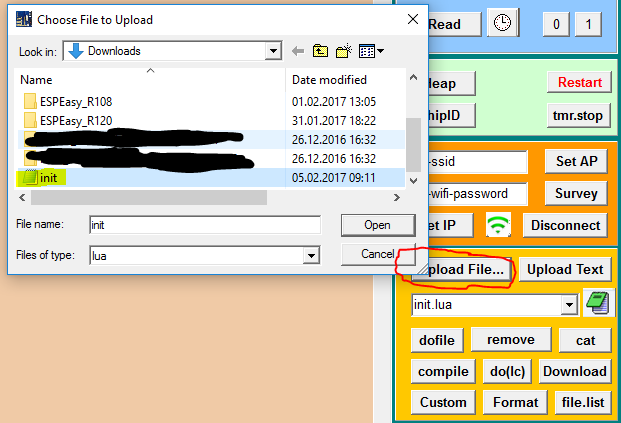
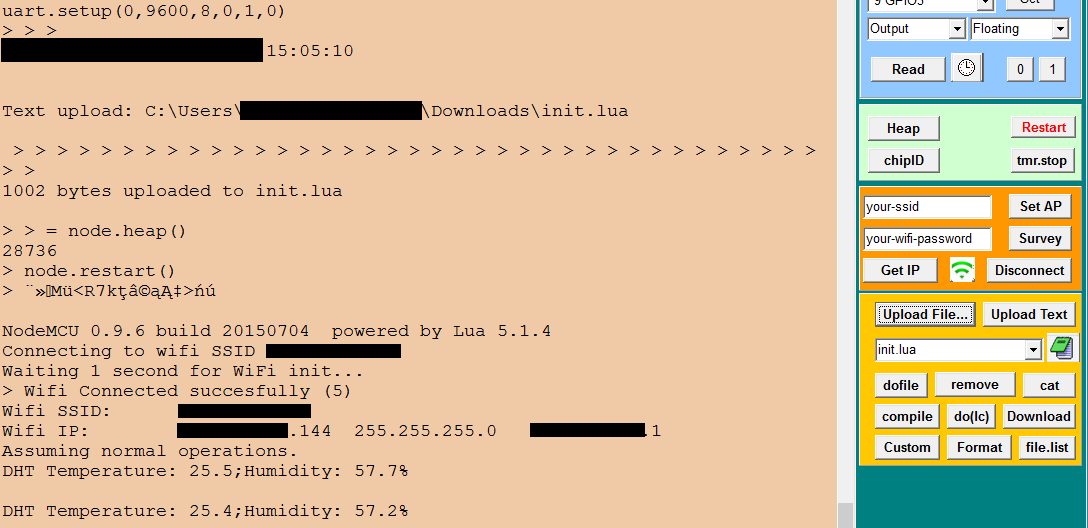
Let's make sure this code will be executed automatically every time our device boots. Save it as init.lua and copy to the device using Lua Loader.

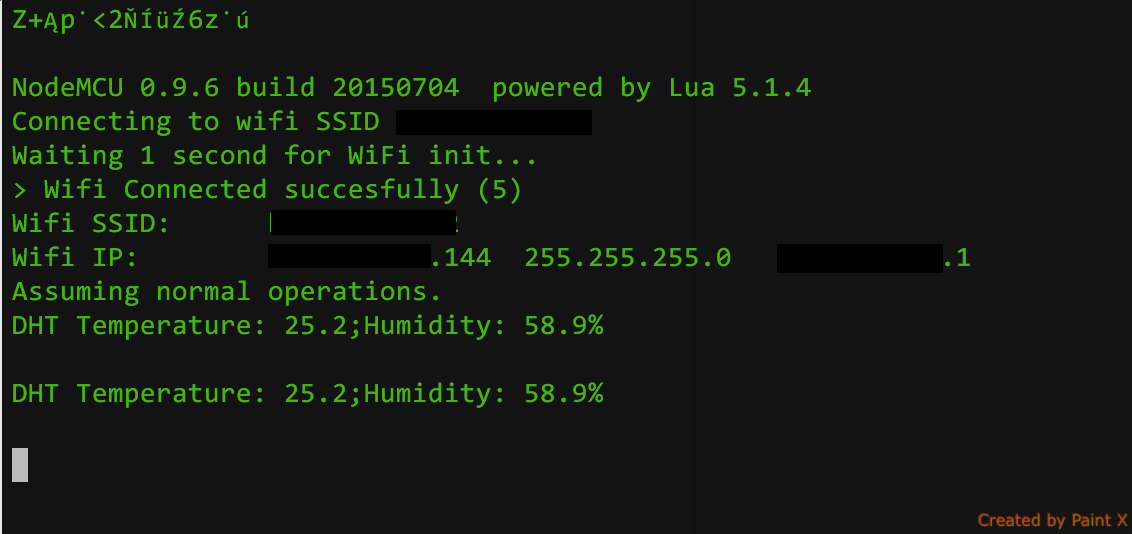
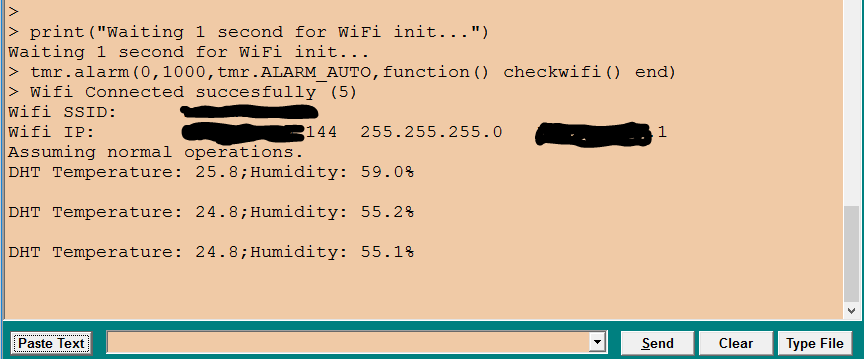
Okay, script loaded, let's reset once again and see results.
In the next part we will see how to send this data to another device through WiFi and use them.


First steps with ESP8266, DHT22 and LUA

If you get here, hopefully you already have your  board connected. If not, please refer to my previous article as it explains this proces step by step.
First interesting feature of Lua Loader is ability to generate some Lua code for us by just hitting buttons. It is also useful to learn as code generated based on our input is displayed on the main window.
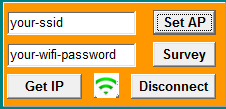
Enter your SSID and password and click "Set AP". In main window you should see commands required to establish WiFi connectivity:

You can try to hit "Get IP" "Survey" and this green icon in the middle - it provides WiFi status. You can also terminate this connection if you wish by hitting Disconnect buton.

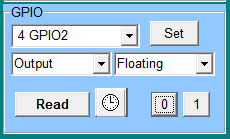
Great stuff, lets try something else. There is LED diode localized near to WiFi Antenna. It is connected to GPIO pin 04 and we can light it. On the right hand side you can see blue "GPIO" panel.
Set it to the following values and click "Set" then click "0".
Led should be now shining blue. Additionally, two lines of Lua code required to achieve this result are generated and displayed in the main window:
If you want to turn it off, click on "1".

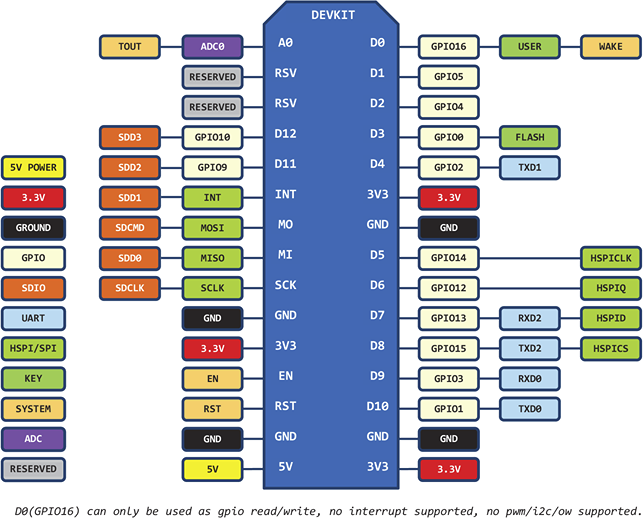
Okay, great, so far so good. We finally get to the point where have board running, tested with some basic features. It's time to understand pinouts and connect DHT sensor. (Please google for nodemcu pinout)

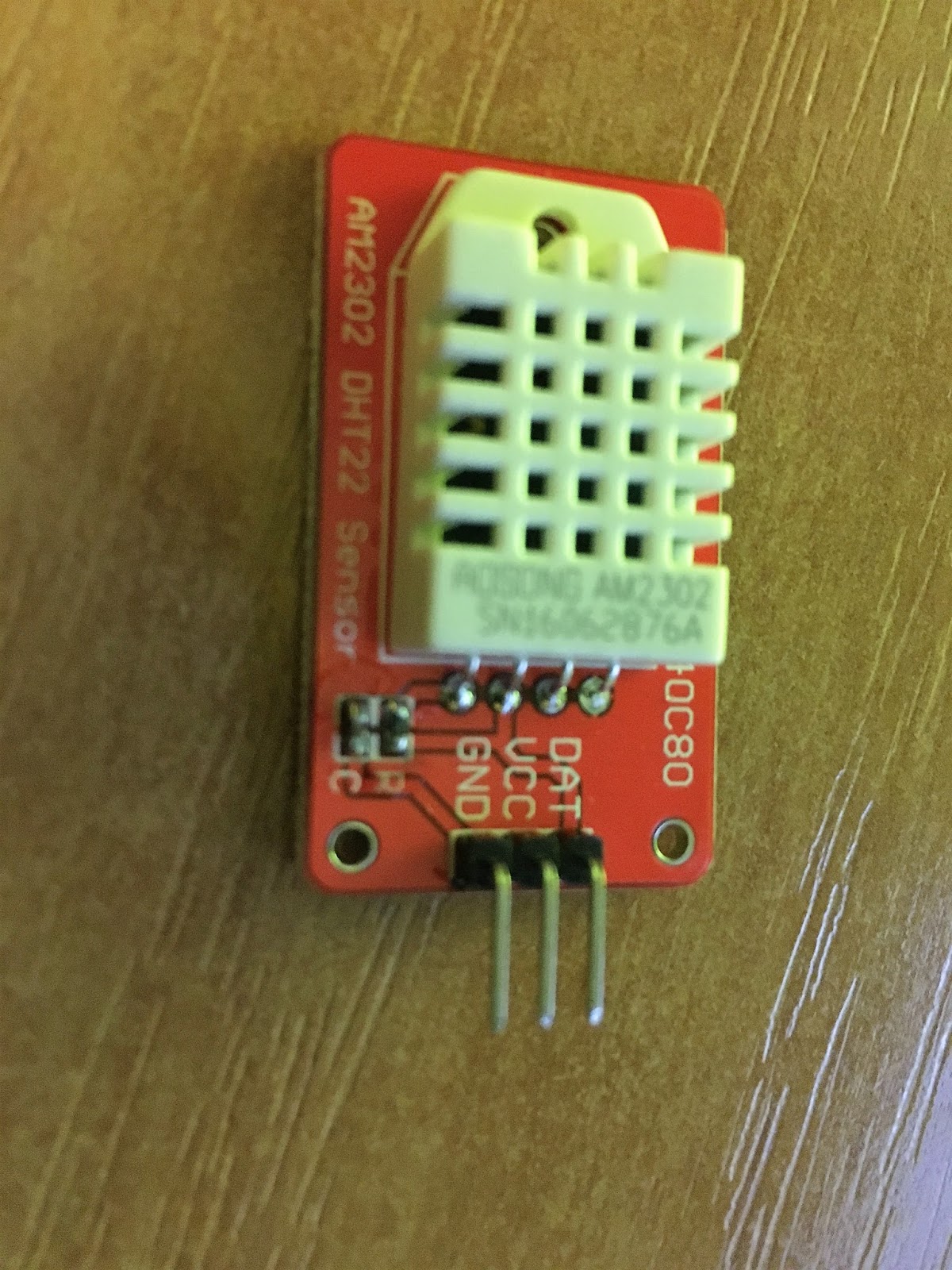
And let's take a closer look on our sensor. It comes with two version - sensor only which has four pins and sensor mounted on PCB which I have. For the first one you gonna need additional resistor in order to connect things properly. With my version it's all about connecting right pins together. They are described as "GND", "ACC" and "DAT". GND is quite descriptive,  must be connected to "GND" on ESP board. ACC is +3,3V and we connect it to "3V3" pin. last one is Data and this should be connected to any of GPIO pinouts.

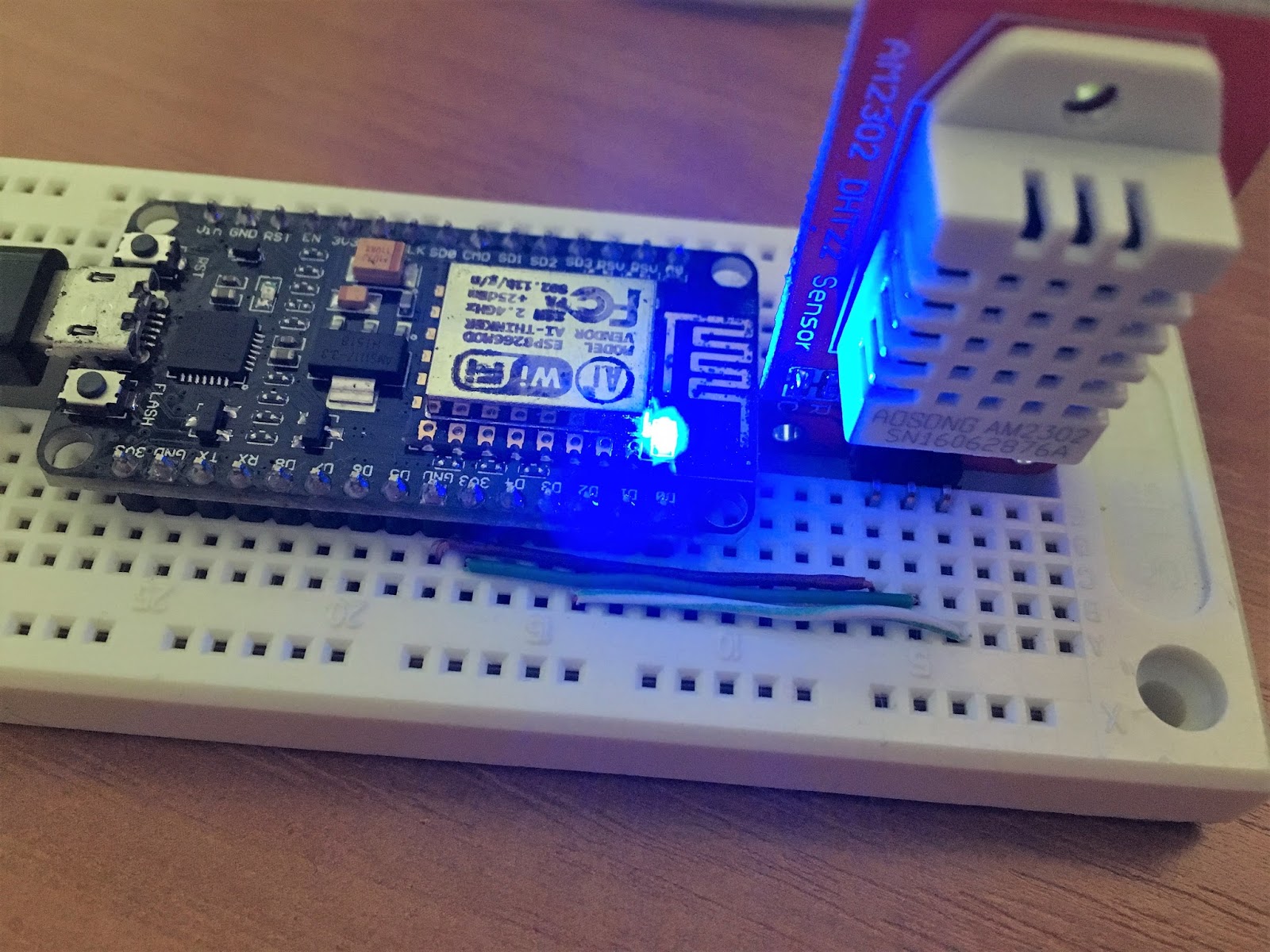
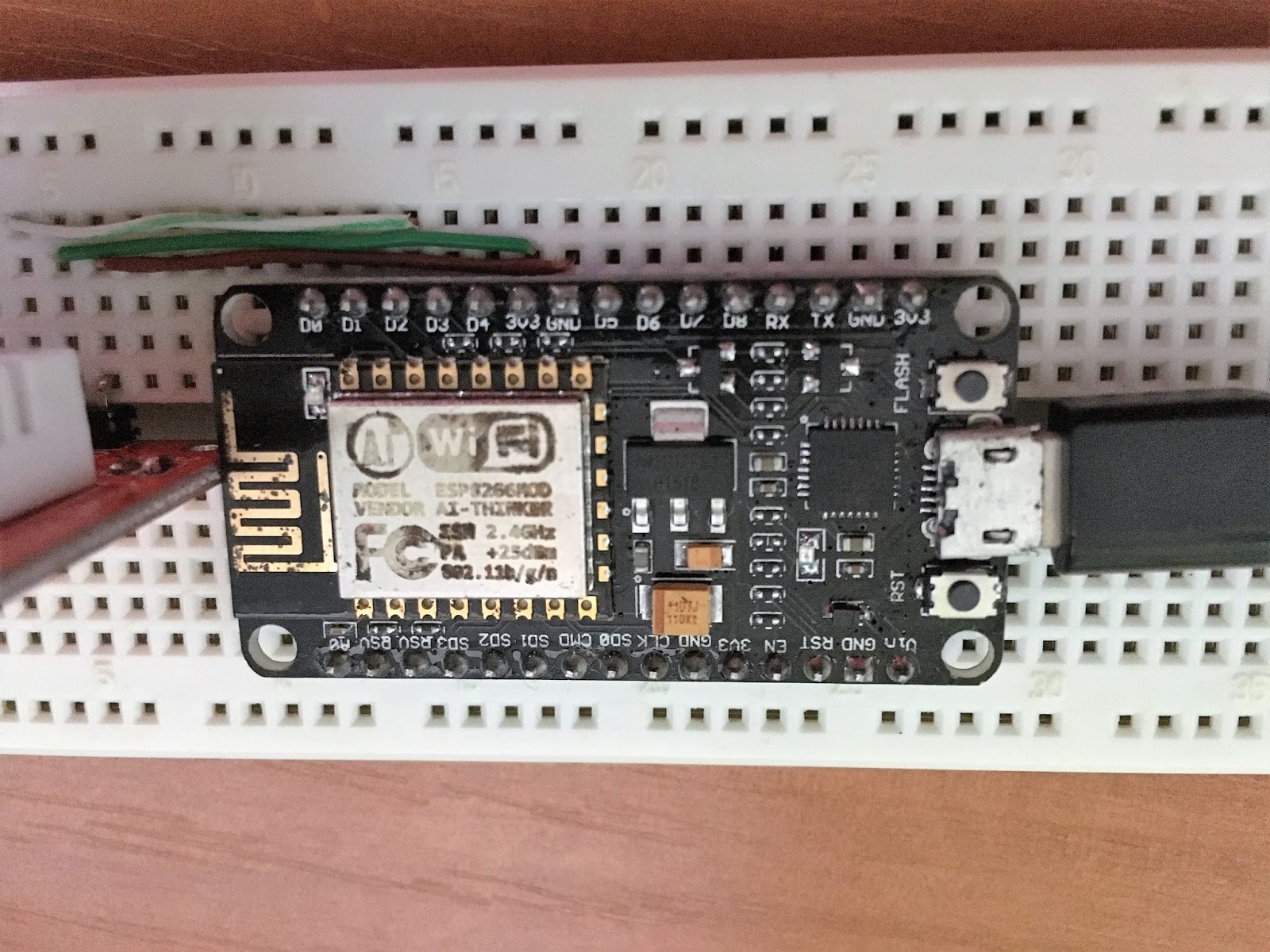
On ESP itself you will see multiple pins with GND or 3V3 descriptions. It doesn't matter which one you use, they are multiplied for covenience. This is how I connected things:


I used pin described as D2 (PIN2) which is in fact GPIO04 pin.

Let's make this thing finally useful and see current temperature and humidity then.

Great! We are now able to read temperature and humidity values from the sensor. In the next section we will try to make it automatic and somehow transmitted to HomeKit software.


Smart Home: HomeKit, MQTT, DHT22, ESP8266, LUA and NodeMCU.

Inspired by my friend and humidity issues in my bathroom I decided to have some fun and start making my home more inteligent.

First attempt - make humidity and temperature sensor which will present data on my iPhone "Home" App. While it looks not complicated when we split it into pieces we need the following components:


- Temperature/Humidity Sensor //DHT22
- Wireless module, capable of reading sensor data and sending it somewhere // ESP8266/NodeMCU
- Some software smart enough to receive and understand data from sensor, identify from which potential sensor this data comes and forward it into HomeKit // MQTT
- Homekit software to talk with phone
- Phone who will read and present data from HomeKit software

I ordered by ESP and DHT on most popular chinesee portal and I aimed for cheapest, so both cost me together a couple of bucks. DHT was delivered quite on time and in good shape, however ESP was more then 3 months in transit and looks like crap. Surprisingly, it works just fine :-)


In order to get started with ESP we need couple of things:
- USB cable
- ESP Flasher
- ESP firmware
- IDE

Start here if you use OSX or Linux machine.

Once you connect your ESP to windows machine with USB you should already see first signs of life from your module, blue led near WiFi antenna should blink randomly. Go to Settings -> Devices -> Connected Devices and look for something like this:

If you see it - great, your USB to Serial driver works just fine and your virtual COM port is whatever the numer is (my case - COM3)

Next step - flash your ESP with new software. Optional, but you will definitely have to flash your ESP multiple times and it's a piece of cake so let's make sure we have newest firmware on it. (And, by the way, if you are already here, it's just about time to at least  browse this resource - you will need it all the time while playing around with your ESP).

You can try to build  your own firmware here but I didn't bother. For the 1st time I just used last pre-compiled image available here. There are two flavors of image, float and integer. I took float, why not?

Yea, it was build almost year ago, but again, for the starter, we don't need fireworks.
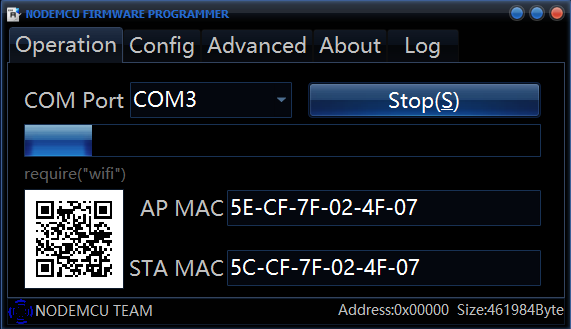
Flasher sits here along with short instruction how to use it. Just download 32bit or 64bit exec file and run. Go to config tab and click on gearwheel icon, select your firmware, leave offset at 0x0. Then get back to operation, make sure your COM port is set properly and click FLASH button. Progress bar should start becoming green and your firmware should be present on ESP in a couple of minutes.
Now it's time to see what this little baby can do for us. By the way, if flashing does not work for some reason, just disconnect everything you might have already connected to the unit.

There is a couple of different IDEs to use with this board, I picked up LuaLoader for no good reason While bit annoying if you want to talk to your device interactively, it works fine.

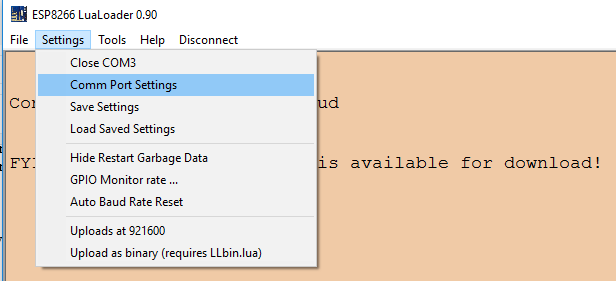
All you need to do is to download executable and run it. Go to Settings -> Comm Port Settings.
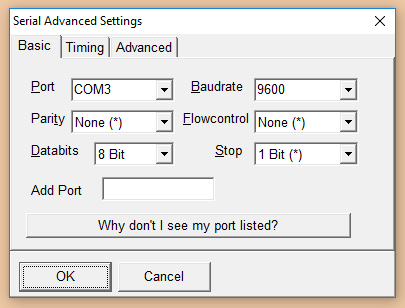
Then configure your serial port as presented.
Then, hit Connect (Right to Settings). Then red "Restart" buton on right hand side. You should see something like this in main window.

If you see this - Excellent. Now it's time to do something useful with your dev board.

Sunday, January 29, 2017

Mobility Express on 3802i

Just got Cisco Aironet 3802i into my hands. Wanted to convert it into standalone aka autonomous mode... oh wait, it's gone. Mobility Express, this is what we have now.

Sounds quite charming, simply speaking you have Master AP which runs "WLC software" in addition to LWAPP software. It associates to itself al well as any other neighboring AP, so yes, if you have only one AP you can run both controller and access point functions on it.

Quick start guide and... my access point does not broadcast CiscoAirProvision SSID

On the console I see alternating messages:

[*06/15/2016 00:19:22.5103] CAPWAP State: Init
[*06/15/2016 00:19:22.5104] CAPWAP State: Discovery
[*06/15/2016 00:19:31.8579] CAPWAP State: Discovery
[*06/15/2016 00:19:31.8581] Did not get log server settings from DHCP.
[*06/15/2016 00:19:41.3609] CAPWAP State: Discovery
[*06/15/2016 00:19:41.3610] Did not get log server settings from DHCP.
[*06/15/2016 00:19:50.8633] CAPWAP State: Discovery

After research, this is what I need: Mobility Express User Guide 8.3 (previous versions do not include 3800 devices).

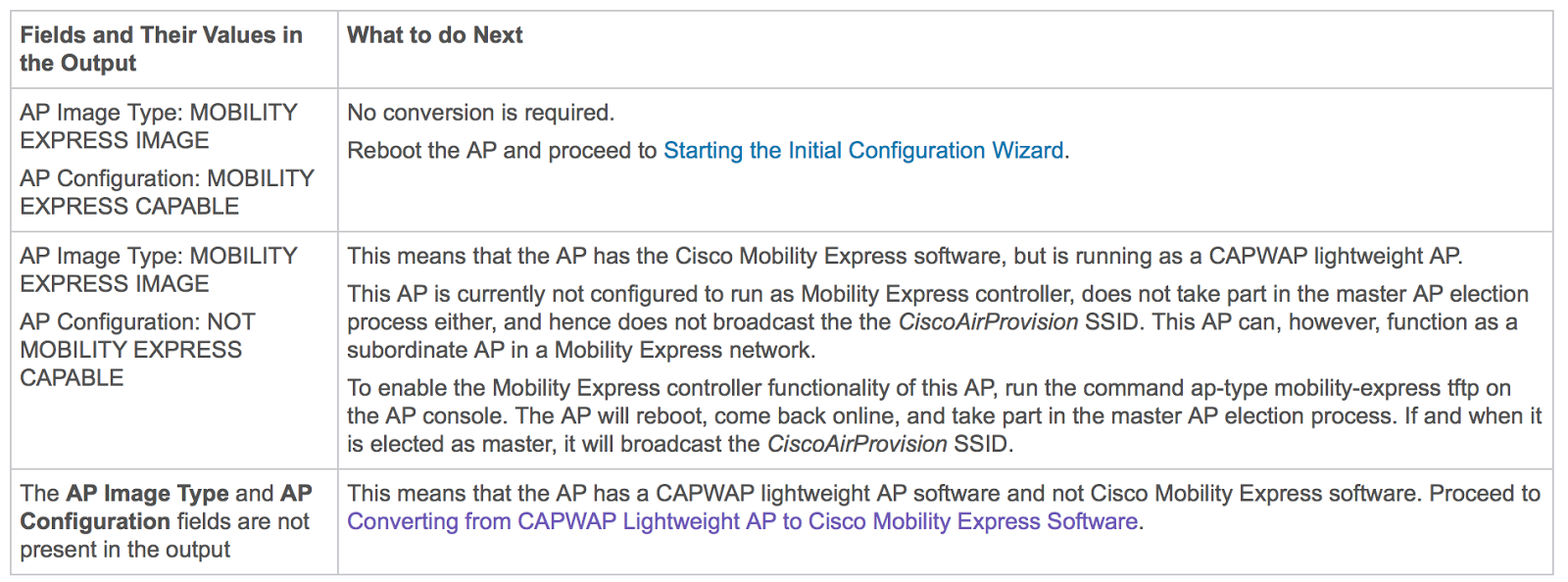
It says login to AP using Cisco/Cisco and do show version and look for "AP Image Type" and "AP Configuration" string in order to understand which version of software you use:


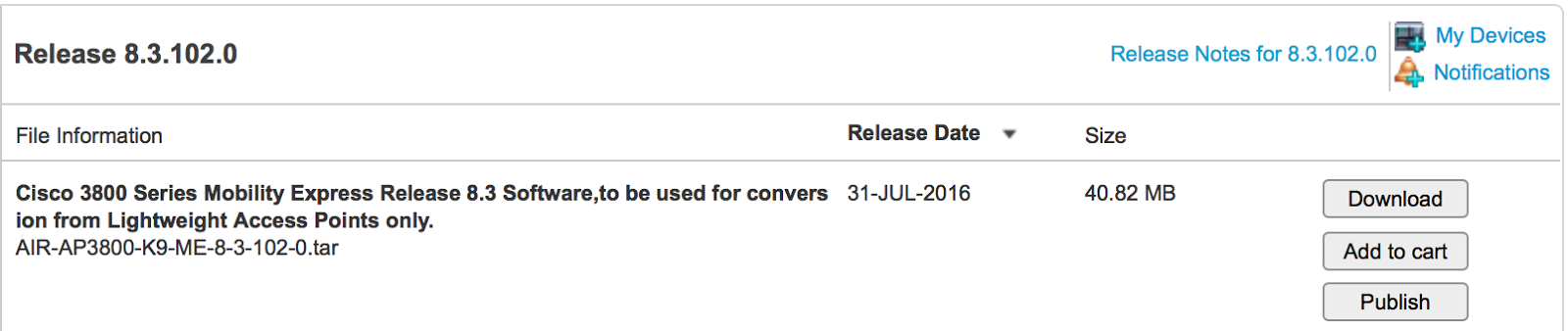
In my case - not present. Converting guide says to download tarball labeled "Software to be used for conversion from Lightweight Access Points only".

So I downloaded latest release for 3800:

The rest is also straightforward, get yourself tftp server, put your image there and use ap-type mobility-express tftp://ip/file command.

AP#ap-type mobility-express tftp://a.b.c.d/AIR-AP3800-K9-ME-8-3-102-0.tar
Starting the ME image download...
It may take a few minutes to finish download.
If it is longer, please abort command, check network connection and try again
########                                                                  11.6%[*06/15/2016 00:40:37.3653] CAPWAP State: Discovery
[*06/15/2016 00:40:37.3655] Did not get log server settings from DHCP.
###########################                                               38.8%[*06/15/2016 00:40:46.8688] CAPWAP State: Discovery
[*06/15/2016 00:40:46.8689] Did not get log server settings from DHCP.
###############################################                           66.4%[*06/15/2016 00:40:56.3713] CAPWAP State: Discovery
[*06/15/2016 00:40:56.3714] Did not get log server settings from DHCP.
###################################################################       93.6%[*06/15/2016 00:41:05.8742] CAPWAP State: Discovery
[*06/15/2016 00:41:05.8743] Did not get log server settings from DHCP.
#######################################################################  100.0%
Image downloaded, writing to flash...
do CHECK_ME, part1 is active part
tar: write error: No space left on device
sh: write error: No space left on device

Error, image file size is smaller than image+key+signature 0x0267e000 : 0x0283a839
Segmentation fault (core dumped)
part.bin signature verification failure, exit the script
Error: Image update failed.

Whoops! Again, ME User guide, quite handy:
After doing the same with .zip image, I got promising message on the console:

[*06/15/2016 00:51:38.8039] AP Type changed: CAPWAP to ME. AP Mode changed to flexconnect. AP Rebooting...

Access point went up with old software version. I try a couple of times more and I also upgraded lightweight software too:

AP#archive download-sw /reload tftp://a.b.c.d/ap3g3-k9w8-tar.153-3.JD.tar
(...)
do ACTIVATE, part1 is active part
activate part2, set BOOT to part2
AP primary version: 8.3.102.0
AP backup version: 8.2.20.16
Archive done.
Reload...

and then retry conversion to ME, both ways, without any luck.

AP#ap-type mobility-express tftp://a.b.c.d/AIR-AP3800-K9-ME-8-3-102-0.tar
Starting the ME image download...
It may take a few minutes to finish download.
(...)

Then during upgrades and reloads I spotted this errors:

Image downloaded, writing to flash...
do CHECK_ME, part2 is active part
tar: can't open '/tmp/part.tar': No such file or directory
No part.bin found
part to upgrade is part1
tar: can't open '/tmp/part.tar': No such file or directory
cp: can't stat '/bootpart/part1/info.ver': No such file or directory
activate part1, set BOOT to part1
grep: /tmp/info.ver: No such file or directory
AP primary version:
grep: /tmp/info.ver: No such file or directory
cp: can't stat '/tmp/part.tar': No such file or directory
Archive done.
[*07/29/2016 05:07:11.8915] AP Type changed: CAPWAP to ME. AP Mode changed to flexconnect. AP Rebooting...
[*07/29/2016 05:07:11.8966] AP Rebooting: Reset Request from Controller(AP Type Changed from CAPWAP to ME)

Writing reload timestamp (Fri Jul 29 05:07:11 UTC 2016) to disk

AP#[*07/29/2016 05:07:12.9426] umount: can't umount /storage: Device or resource busy
failed to unmount /storage; waiting 1s and trying again.
The system is going down NOW!05:07:13.9456]
Sent SIGTERM to all processes
[*07/29/2016 05:07:13.9512] device capwap0 left promiscuous mode
[*07/29/2016 05:07:13.9907] device capwap1 left promiscuous mode
Sent SIGKILL to all processes
Requesting system reboot83]
[07/29/2016 05:07:15.9400] reboot: Restarting system

And during booting:

UBIFS: mounted UBI device 0, volume 0, name "part1"
UBIFS: mounted read-only
UBIFS: file system size:   65646592 bytes (64108 KiB, 62 MiB, 517 LEBs)
UBIFS: journal size:       8888320 bytes (8680 KiB, 8 MiB, 70 LEBs)
UBIFS: media format:       w4/r0 (latest is w4/r0)
UBIFS: default compressor: LZO
UBIFS: reserved for root:  0 bytes (0 KiB)
part1/part.bin not found!
ubifsload - load file from an UBIFS filesystem

Usage:
ubifsload <addr> <filename> [bytes]
    - load file 'filename' to address 'addr'
Unable to load image part1/part.bin
Trying alternate UBIFS partition part2
UBIFS: mounted UBI device 0, volume 1, name "part2"
UBIFS: mounted read-only
UBIFS: file system size:   65646592 bytes (64108 KiB, 62 MiB, 517 LEBs)
UBIFS: journal size:       8888320 bytes (8680 KiB, 8 MiB, 70 LEBs)
UBIFS: media format:       w4/r0 (latest is w4/r0)
UBIFS: default compressor: LZO
UBIFS: reserved for root:  0 bytes (0 KiB)
Loading file 'part2/part.bin' to addr 0x02000000 with size 25215697 (0x0180c2d1)...
Done

Looks like we have two alternate boot partitions part1 and part2. Looks like installer is trying to install new image to part1 (it fails) while preserving image installed to part2 as a backup.

In case of emergency, it fail over to old image which is exactly what is happening to me.

So, I tried to set boot to part 1 once again manually and reload


AP#config boot path 1
AP#show boot
BOOT path-list:      part1
Console Baudrate:    9600
Enable Break:        yes
Manual Boot:         no
Memory Debug:        no
AP#reload
Proceed with reload? [confirm]

cli: AP Rebooting: CLI triggered reboot(reload command)

No luck, result was exactly the same as previously.
What if part1 is faulty indeed and we are stuck because installer see part2 as active and keep installing on part1? Maybe it can be cheated to think part1 is active and install to part2?
Risky, because in cause of failure we don't have backup but yea, what the heck.

THIS MAY CAUSE SERIOUS ISSUES WITH YOUR AP. YOU HAVE BEEN WARNED.

Interestingly enough, after I did this my installer still was smart enough to know that true active disk is part2, but at the same time it was able to successfully install image on part1 and boot from there.

AP#config boot path 1
AP#show boot
BOOT path-list:      part1
Console Baudrate:    9600
Enable Break:        yes
Manual Boot:         no
Memory Debug:        no
AP#ap-type mobility-express tftp://a.b.c.d/AIR-AP3800-K9-ME-8-3-102-0.tar
Starting the ME image download...
It may take a few minutes to finish download.
If it is longer, please abort command, check network connection and try again
#######################################################################   99.8%
Image downloaded, writing to flash...
do CHECK_ME, part2 is active part
Verify returns 0
part to upgrade is part1
activate part1, set BOOT to part1
AP primary version: 8.3.102.0
Archive done.
[*07/29/2016 05:20:14.9008] AP Type changed: CAPWAP to ME. AP Mode changed to flexconnect. AP Rebooting...
[*07/29/2016 05:20:14.9063] AP Rebooting: Reset Request from Controller(AP Type Changed from CAPWAP to ME)

(...)

UBIFS: mounted UBI device 0, volume 0, name "part1"
UBIFS: mounted read-only
UBIFS: file system size:   65646592 bytes (64108 KiB, 62 MiB, 517 LEBs)
UBIFS: journal size:       8888320 bytes (8680 KiB, 8 MiB, 70 LEBs)
UBIFS: media format:       w4/r0 (latest is w4/r0)
UBIFS: default compressor: LZO
UBIFS: reserved for root:  0 bytes (0 KiB)
Loading file 'part1/part.bin' to addr 0x02000000 with size 42182713 (0x0283a839)...
Done
SF: Detected N25Q32A with page size 64 KiB, total 4 MiB
Checking image signing.
This could take up to 40 seconds. Please wait...
Image signing verification success, continue to run...

(...)

Ok it works!

AP#show version | i MOBILITY
AP Image type    : MOBILITY EXPRESS IMAGE
AP Configuration : MOBILITY EXPRESS CAPABLE

After another series of console messages I can see confirmation that it work correctly:

Enabling Controller Provisioning
 Configuring management interface
 Enabling mgmt via wireless
 Enabling Provisioning SSID
 SSID: CiscoAirProvision, Admin Status: 1, Interface Name: management, 802.11 Auth: WPA2-PSK,  Wi-Fi Protected Access : Enabled

So I can jump into this SSID and carry on with configuration from the GUI.

Connect to CiscoAirProvision SSID using key "password", go to http://192.168.1.1 and very nice wizard will take you from there.

Edit 16.03.2017:
I had a lot of issues with WiFi after upgrade from 3700 to 3800. Including some devices failed to connect, some failed after couple of days and AP restart was required, RF Optimization had to be turned of because of similar reasons. It was so serious that I almost decided to get back to 3700. At the end of the day I found out that there's new software version for that AP, previously there was only one software available. I'm still keeping my fingers crossed, but looks like after upgrade to AIR-AP3800-K9-ME-8-3-111-0 everything is all right.

Sunday, December 25, 2016

Multi-Chassis Etherchannel (MEC)

What is rationale and benefits behind this?

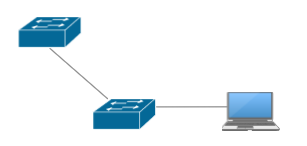
Let's start with some basics. We have an user connected to access switch. Which is connected to some distribution switch upstream.


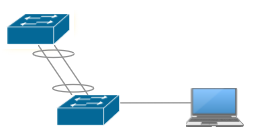
This works until distribution switch or link fail. How do we make it better? Use Etherchannel.


While we still depend on failure of distribution switch, we are now protected from single link failure and bandwidth available to access switch has been almost* doubled.
Benefits of current topology are:
- STP consider etherchannel as one link - will NOT engage and recalculate L2 topology after single link failure
- Practically zero switchover time
- Both links are used at tue same time
But still couple of issues are not resolved:
- failure of distribution switch kills connectivity
- completely equal utilization of both links is very hard to achieve; having doubled bandwidth by having number of links doubled is not possible

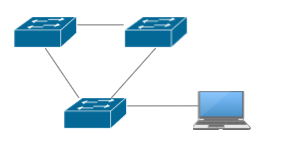
Now let's consider different topology with paralel connections to two distribution switches.


It's better for sure, as right now we don't rely on only one distribution switch. Should one of them fail, we can still have our network access through other one. This is also resilient to single link failure.
Drawbacks? Yes, a couple:
- Spanning tree must be enabled in order to make sure there are no L2 loops in the network
- One of uplinks will be permanently blocked, so we pay for two connections and use only one
- after failure of active link, connectivity could be interrupted for amount of time needed by STP to recalculate network topology.

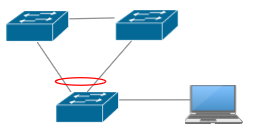
Multichassis etherchannel is a hybrid topology which allows to get the best of dual homing and bundling separate connections together at the same time.


Resilient to single switch or link failure. Both links used at the same time, and single link failure does not trigger topology recalculation.
Although it seems perfect, we still need to remember that there are some limitations, too. First of all, it adds complexity to environment, especially when control plane of distibution switches are separated like Cisco vPC (Virtual Port Channel available on Nexus switches) does. In other implementations they can be joined together like Cisco VSS (Virtual Switching System available on Catalyst 6xxx switches) which basically turns two different switches into one.


Problem
Single homed
Dual homed
Ether Channel
MEC
Switch failure breaks connectivity
YES
NO
YES
NO
Link Failure breaks connectivity
YES
NO
NO
NO
Cannot use all connections
NO
YES
NO
NO
Link failure triggers topology change
YES
YES
NO
NO

Tuesday, December 20, 2016

Destination net unreachable? Fine!

Amazing, today I encountered internet link failure (again) and I was trying to ping google. Interesting how my Windows interprets ping results:

PS C:\Users\me> ping 8.8.8.8 -t

Pinging 8.8.8.8 with 32 bytes of data:
Reply from 192.168.66.1: Destination net unreachable.
Request timed out.
Reply from 192.168.66.1: Destination net unreachable.
Request timed out.
Reply from 192.168.66.1: Destination net unreachable.
Request timed out.
Reply from 192.168.66.1: Destination net unreachable.
Request timed out.
Reply from 192.168.66.1: Destination net unreachable.
Request timed out.
Reply from 192.168.66.1: Destination net unreachable.

Ping statistics for 8.8.8.8:
    Packets: Sent = 31, Received = 26, Lost = 5 (16% loss),
Control-C
PS C:\Users\me>